Take the call from your browser.
Open the agent dashboard before your shift. Check your headset, become available and keep the call record close by when you finish.
Browse guides
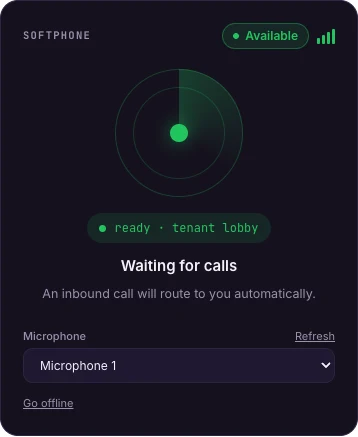
Check the desk before you go available
- Sign in to your agent workspace and open the Dashboard.
- Connect a headset and choose the microphone from the softphone’s Microphone menu.
- Allow the browser to use the microphone when prompted.
- Choose Go available when you are ready to receive a call.
Answer the offer
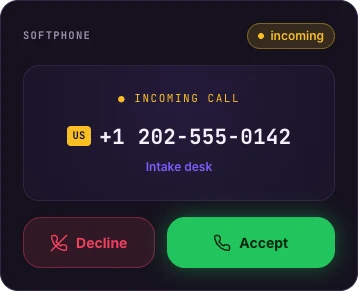
When a call arrives, the softphone shows its caller details and lets you answer or decline. If the microphone prompt was blocked earlier, open the browser’s site permissions and allow microphone access before answering.
After answering, ask the other person to speak once. If you cannot hear them, check the selected device, browser permission and softphone mute state.
Control the call
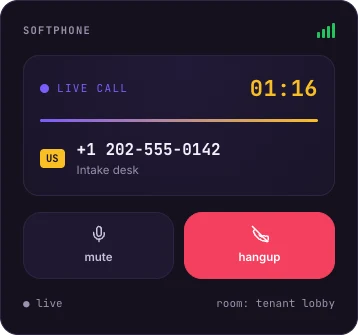
Use Mute while your microphone should not be heard. Check the control again before speaking. Hang up when the conversation is complete.
Find the call in history
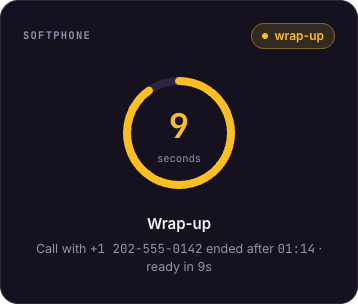
Open Call History in the agent navigation. Find the call by time or caller. Check its outcome, duration and charge.
Try the browser practice call
The Dashboard has a Place test call control for agents. This is a browser practice call. It rings the agent in a simulated call and does not exercise the carrier’s inbound route. An answered practice call can use your workspace balance. For a carrier check, ask your admin to place an actual inbound call from an owned number.
Review the SIP setup guide if your team still needs to connect its incoming line.