Connect the number that rings your team.
Dialviction can receive calls from a managed campaign, or from an existing provider you configure to send inbound SIP traffic to your workspace.
Browse guides
Pick a connection path
Managed campaign
In Admin → Traffic, send support the campaign name, tracking number and expected daily call volume. Dialviction’s team wires this route and confirms when it is ready.
Your carrier or dialer
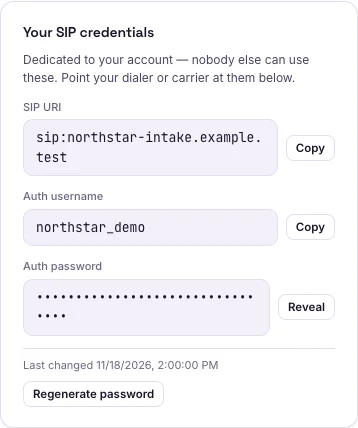
Open Admin → Traffic and use the SIP URI, auth username and password displayed for the workspace. Configure the provider to send calls to that destination. In your dialer, use the SIP address as an outbound destination for calls entering Dialviction. Codec and network settings vary by carrier, so confirm its supported settings with the provider.
Credentials still provisioning?
The Traffic page may show a pending setup state. Contact support before configuring a destination. Reveal the password from the signed-in page when credentials are ready, then treat it like a password for the receiving line.
Configure the provider
- Copy the workspace SIP URI exactly into the carrier’s destination field.
- Set its authentication username and password from the same workspace card.
- Send SIP INVITEs to that destination. These calls enter Dialviction. Confirm transport, codecs and network requirements with your provider.
- For a Vicidial carrier, use its outbound destination field for this SIP address and enable digest authentication. If the version requires a registration string, check with support before proceeding.
Do not paste credentials into a ticket. Send the carrier setup result to your support contact if the fields differ from these instructions.
Verify the full route
Have one agent sign in and go available. Call the number from another phone, ideally from a caller number different from the workspace slug or team identifier.
- Confirm the intended agent rings within two seconds.
- Answer and exchange a short phrase in both directions.
- Hang up and find the same call in Admin → Call History.
- Check the outcome, duration and charge against this call.
A browser practice call can confirm that the agent screen rings, but it does not exercise carrier ingress. Use the agent guide to prepare the receiving desk.
Rotate a password safely
Regenerating the trunk password changes what the carrier must use to authenticate. Coordinate a window with the system that sends calls, then update its saved credential promptly. A password mismatch can stop inbound calls from connecting. Use the Traffic screen’s confirmation step and wait for the new credential to propagate before verifying it with a call.